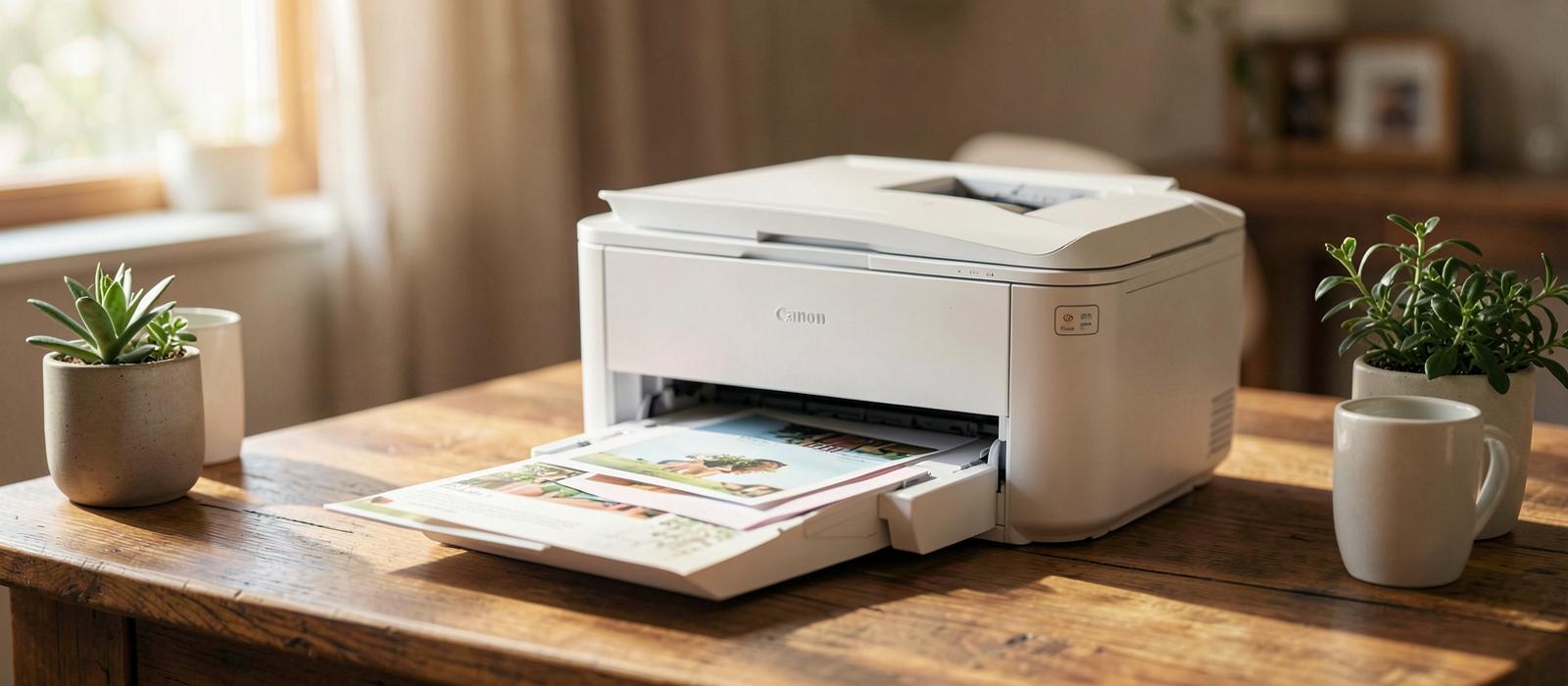
Canon printer offline or flashing an error?
From B200 printhead resets to stubborn offline status — 57 plain-language Canon fixes, written for real home models.
Fix my Canon →The printer troubleshooting desk
Your printer is offline. Let's fix it, gently.
No jargon, no sign-ups. Just the exact steps, in order, to get your Canon, Brother, or Epson printing again.
One desk, three brands
Guides for Canon, Brother & Epson
Every guide on this site is written for one of the three big home-printer brands — pick yours and start fixing.
Connect your printer to Wi-Fi — step by step
Four methods for each brand, plus where each one tends to break. The app, the printer's own screen, the WPS button, and a USB fallback.
Open the Wi-Fi guide →
(a) Start here
135 guidesWi-Fi
Get your Canon back online
4 min · Easy
Jams
Clear a paper jam safely
6 min · Medium
Codes
Resolve the B200 printhead error
8 min · Medium
Ink
Fix faint or streaky prints
7 min · Easy
Setup
Set up double-sided printing
5 min · Easy
Scan
Scan to computer stopped working
6 min · Easy
Care
Run a printhead cleaning the right way
8 min · Easy
Mobile
Print from an iPhone or iPad
4 min · Easy
Know your Canon
All models →PIXMA inkjet
Canon's most common home printers. Use liquid ink cartridges, great for photos and everyday documents. Watch for clogged print heads and ink-related error codes.
e.g. TS3522 · TR4720 · MG3620
PIXMA MegaTank
Inkjet printers with refillable ink tanks instead of cartridges — much cheaper per page. Refill carefully; air in the lines causes streaks and false 'low ink' warnings.
e.g. G3270 · G3420
MAXIFY
Fast document inkjets built for home offices and small teams. High-yield tanks, heavy-duty paper trays, and two-sided scanning on most models.
e.g. GX7020 · MB2720
imageCLASS laser
Mono and color laser printers that use toner powder, not ink. Sharp text, fast output, and they never clog — but toner and drum units need occasional replacement.
e.g. MF264dw
SELPHY photo
Small dye-sublimation printers made just for photos. Each print uses a ribbon and paper from the same cassette — replace both together when prints run out.
e.g. SELPHY CP1500
imageRUNNER
Full-size office copiers and multifunctions. Most of these guides target home models — office machines often need an admin password for the same settings.
e.g. imageRUNNER ADVANCE
Know your Brother
All models →MFC inkjet
Brother's all-in-one inkjet printers. Print, scan, copy and fax from one unit. Watch for clogged nozzles after idle periods and the “Unable to Print 30” printhead error.
e.g. MFC-J1010DW · MFC-J995DW
MegaTank / INKvestment
Brother inkjets with refillable ink tanks (INKvestment MFC-J models). Low cost per page — air in the lines causes streaks and false low-ink warnings after a refill.
e.g. MFC-J1205W · MFC-J805DW
HL mono laser
Compact black-and-white laser printers using toner. Sharp text, never clog, but the drum and toner are separate parts — each needs replacing at its own interval.
e.g. HL-L2350DW · HL-L2395DW
MFC-L laser
Laser all-in-ones that print, scan, copy and fax. Faster and tougher than inkjets for offices; watch fuser errors (E50) and waste toner box warnings on color models.
e.g. MFC-L2710DW
DCP
Brother's value all-in-ones — print, scan, copy without fax. Common in home offices. Most share the same menus as the HL and MFC-L families, so the steps transfer.
e.g. DCP-L2540DW · DCP-L2550DW
HL-L color laser
Color laser printers and multifunctions. Four toners, a drum, a belt unit, and a waste toner box — each tracked separately. Extra parts mean more counters to reset.
e.g. HL-L8360CDW
Know your Epson
All models →EcoTank
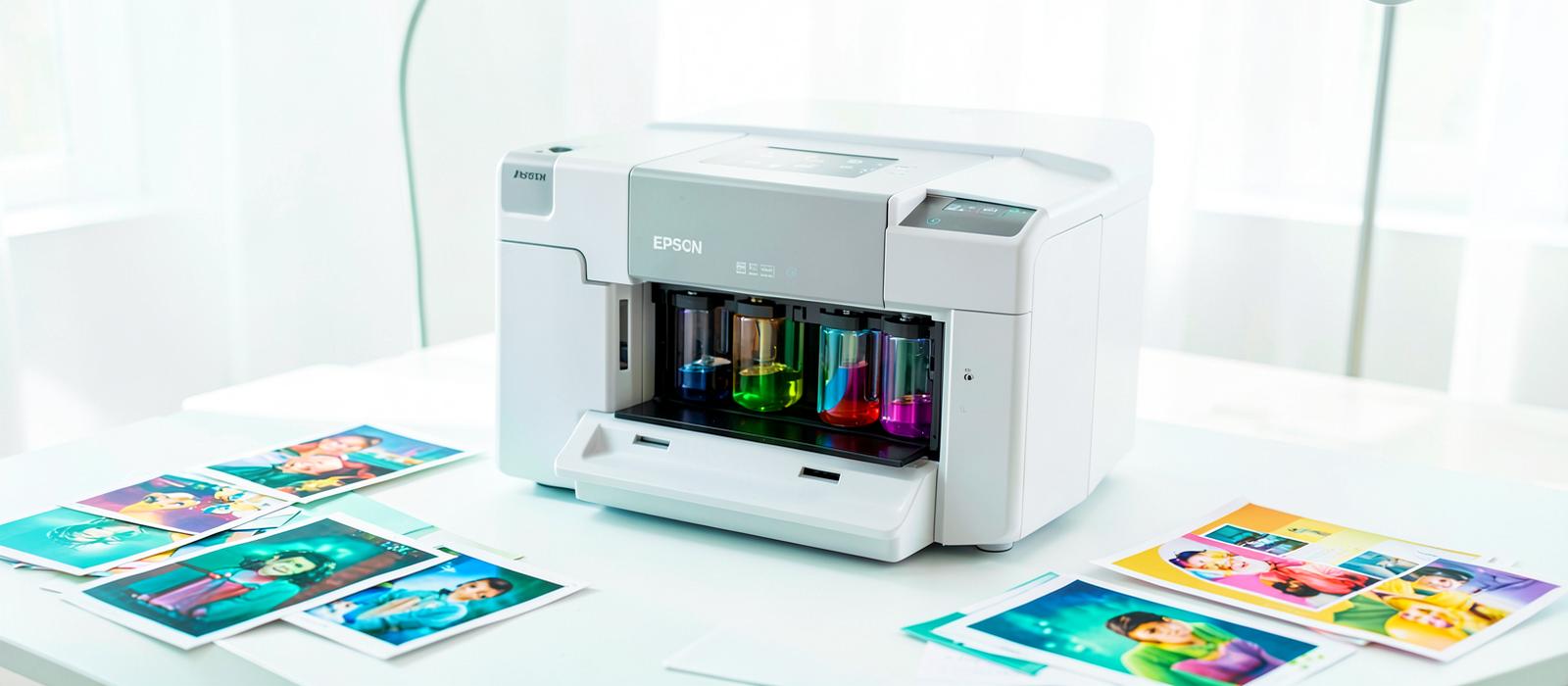
Epson's cartridge-free inkjets with big refillable tanks. Very cheap per page — but let a tank run dry and air in the lines causes streaks until a Power Cleaning clears it.
e.g. ET-2800 · ET-4850
Expression
Compact cartridge inkjets for home printing and photos. Small cartridges mean frequent swaps; watch for “cartridge not recognized” after firmware updates.
e.g. XP-4200 · XP-5200
WorkForce
Fast document inkjets with fax and document feeders. Built for offices — the 0x97 and 0xF1 hardware errors are the ones to know on these models.
e.g. WF-2930 · WF-2960
WorkForce Pro
Heavy-duty business inkjets with high-yield ink packs and fast two-sided scanning. Share their menus with the regular WorkForce family, so most steps transfer.
e.g. WF-3820 · WF-4820
(b) How it works
Identify what you're seeing
Diagnose the likely cause
Resolve it, step by step
(c) Featured fix
Easy · 4 minGet your Canon back online
- 1
Wake the printer. If the power light is off or dim, press the power button once and wait 30 seconds.
- 2
Check the Wi-Fi lamp on the printer. A steady blue light means it's connected; a blinking light means it's still searching for your router.
- 3
On your computer, open the print queue and cancel every pending job, then try a single test page.
Pro tip
If the Wi-Fi lamp stays solid orange, the printer can't find your router at all — restart the router before touching any printer setting.
(d) Every guide
Browse all →Wi-Fi
CanonGet your Canon back online
Your computer says the printer is offline, but it's sitting right there. This is usually a stuck print queue or a dropped Wi-Fi link — both take minutes to fix.
Wi-Fi
CanonConnect your Canon to Wi-Fi
First-time setup or a new router? Use the printer's Easy Wireless Connect mode to join your home network without a cable.
Jams
CanonClear a paper jam safely
A jam doesn't mean anything is broken. The trick is pulling the sheet out slowly, in the direction it was travelling, so no torn corners stay inside.
Codes
CanonResolve the B200 printhead error
B200 means the printer can't drive the print head correctly — often dried ink or a poorly seated cartridge, not a dead printer. Try this before replacing anything.
Codes
CanonFix error E03 (paper feed)
E03 means the printer tried to grab a sheet and missed. It's almost always loading, alignment, or a roller that needs a quick clean.
Ink
CanonFix faint or streaky prints
Washed-out pages and white lines usually mean clogged nozzles, not empty cartridges. A nozzle check tells you exactly which color is struggling.
Ink
CanonReplace ink cartridges & clear warnings
Cartridge errors after a refill or swap usually come from a missed click, leftover tape, or the ink counter needing a reset.
Ink
CanonSpeed up slow printing
If every page crawls out, the printer is likely set to high quality or quiet mode — or it's re-rendering a heavy document. All easy wins.
Codes
CanonUnderstand the 5B00 waste ink error
5B00 (also 5B01) means the internal waste ink counter is full. It is a counter, not a breakage — but it needs a service reset, not a home fix.
Codes
CanonClear the 1700 ink absorber warning
1700 is the early warning that comes before 5B00. You can usually keep printing for a while after acknowledging it.
Codes
CanonFix support code 6000
6000 means the printer cannot feed paper or detects an obstruction in the paper path. Usually debris or a mis-set tray.
Codes
CanonFix the 1403 print head not installed error
1403 (and 1401/1485) means the printer cannot read the print head. Reseating and cleaning the contacts fixes most cases.
Codes
CanonFix the 1682 ink cartridge error
1682 says a cartridge is not recognised. Reseating, cleaning the chip, and confirming the right cartridge number solves it.
Codes
CanonFix the 1660 cartridge not installed error
1660 means a slot is reading as empty. Usually the cartridge is in the wrong bay or not clicked down.
Codes
CanonFix the 1310 paper size mismatch
1310 appears when the paper size set on the printer does not match the size in the print dialog.
Codes
CanonUnderstand the P07 service error
P07 is the older display form of the waste ink absorber full condition. It requires a service reset.
Codes
CanonFix the C000 general error
C000 is a catch-all fault that usually means something is physically blocking the carriage or a jam sensor is triggered.
Jams
CanonStop the printer pulling two sheets at once
Multiple sheets feeding together usually comes from static, humidity, or an overfilled tray rather than a mechanical fault.
Jams
CanonPrinter will not pick up paper at all
When the rollers spin but nothing moves, the rubber has usually gone glossy with paper dust and lost its grip.
Jams
CanonFix crooked or skewed printing
Skewed output means the sheet enters at an angle — nearly always a paper guide or loading issue.
Jams
CanonStop photo paper from jamming
Glossy paper is heavier and sticks together. Loading it one sheet at a time from the rear tray solves most jams.
Jams
CanonPrint envelopes without jams
Envelopes need the right orientation, the right media setting, and a light touch on the guides.
Jams
CanonPrint on cardstock and thick paper
Most Canon home printers handle card up to around 300 gsm from the rear tray only.
Setup
CanonSet up double-sided printing
Many Canon models print both sides automatically; those that do not can still do it manually in two passes.
Setup
CanonPrint photos without white borders
Borderless printing needs both a supported paper size and the borderless checkbox in the driver.
Setup
CanonInstall a Canon printer on Windows
Windows finds most Canon printers automatically on the network; the full driver adds scanning and maintenance tools.
Setup
CanonAdd a Canon printer on a Mac
macOS uses AirPrint for most Canon models, so no driver download is usually needed.
Wi-Fi
CanonPrinter not found during setup
Setup tools fail to see the printer when the phone or PC is on a different band, a guest network, or a VPN.
Wi-Fi
CanonPrint with Wireless Direct, no router
Wireless Direct turns the printer into its own hotspot so you can print when the home network is down.
Wi-Fi
CanonReconnect after changing your Wi-Fi password
The printer keeps the old password and silently drops off. Re-running the wireless setup takes a few minutes.
Scan
CanonScan to computer stopped working
You press Scan on the printer and nothing arrives on the computer. Almost always the scan link between the two devices has dropped.
Scan
CanonScans look dark, blurry or streaky
A scanned page that looks worse than the original is usually a dirty glass strip or the wrong scan preset.
Scan
CanonScan several pages into one PDF
One file instead of ten separate images, using the tools already on the printer.
Scan
CanonCopies come out blank or half printed
The scanner reads the page but the printed copy is empty or cut off — a placement or ink problem, not a scanner fault.
Scan
CanonDocument feeder will not pull pages
The top feeder grinds or reports no document even with a full stack loaded.
Care
CanonRun a printhead cleaning the right way
Cleaning fixes most quality problems, but repeating it too often wastes a surprising amount of ink.
Care
CanonAlign the printhead for sharp lines
Text with a faint double edge or wavy ruled lines means the head alignment has drifted.
Care
CanonClean the paper feed rollers
Dusty rollers slip, so pages misfeed or come through smudged. A built-in routine cleans them.
Care
Canon“Ink absorber almost full” warning
The pad that soaks up cleaning ink is filling. The printer keeps working for a while, then stops with a service code.
Care
CanonKeep a rarely used printer healthy
Inkjets clog when they sit idle. A few habits keep a once-a-month printer working.
Mobile
CanonPrint from an iPhone or iPad
Most Canon printers print straight from iOS with no app at all, as long as both are on the same Wi-Fi.
Mobile
CanonPrint from an Android phone
Android needs a print service switched on before the printer shows up in the share menu.
Mobile
CanonPrint photos straight from a USB stick or card
Models with a screen and a port can print without any computer or phone involved.
Mobile
CanonGet the best out of a SELPHY photo printer
SELPHY uses paper and a ribbon cassette as a matched set — most problems come from mixing them.
Setup
CanonStop the paper size mismatch message
The printer compares what you loaded with what the job asks for and stops when they differ.
Setup
CanonJobs take ages to start over Wi-Fi
The printing itself is fine; the delay is the job crossing a weak or busy network.
Setup
CanonMake your Canon the default printer
Jobs quietly going to a PDF writer or an old printer is a default-printer problem.
Setup
CanonReset the printer's network settings
A clean start for Wi-Fi when the printer keeps dropping off and nothing else helped.
Ink
CanonToner low message on an imageCLASS laser
Laser printers warn early. You can usually get a few hundred more pages before quality actually drops.
Ink
CanonMegaTank prints blank with full tanks
Full tanks but nothing on the page usually means air in the tubes or a clogged head after idle weeks.
Ink
CanonColours print wrong compared with the screen
Prints that look too warm, too dark or oddly tinted are usually a paper-type or colour-setting mismatch.
Ink
CanonInk smudges on the page
Smears on the front or back of the page point at wet ink, curled paper or a dirty roller.
Codes
CanonPrinthead errors 1401 and 1403
The printer cannot read the printhead at all (1401) or reads it as unsupported (1403).
Codes
CanonErrors B203 and B204
Related to B200 — the printer detected an electrical fault around the printhead and stopped to protect itself.
Codes
CanonError 5100 — carriage cannot move
Something is physically stopping the carriage, or the strip it reads position from is dirty.
Codes
CanonError 2114 — paper settings do not match
A polite stop rather than a fault: the loaded paper is not what the job asked for.
Codes
CanonError 1000 — no paper in the rear tray
The rear tray sensor cannot see paper, even when a stack is sitting there.
Wi-Fi
BrotherGet your Brother back online
Windows or your phone says the Brother printer is offline, but it's powered on. This is almost always a stuck print queue, a wrong port, or a dropped Wi-Fi link — all quick to clear.
Wi-Fi
BrotherConnect your Brother to Wi-Fi
First-time setup or a new router? Use the wireless setup wizard on the printer panel — no USB cable needed on most models.
Wi-Fi
BrotherBrother can't find your Wi-Fi network
The setup wizard lists every neighbour's network except yours. It's usually a band or channel mismatch — the printer only sees one of them.
Wi-Fi
BrotherUpdate the Wi-Fi password on your Brother
Changed your Wi-Fi password? The printer keeps trying the old one and never reconnects. Re-run the wizard with the new password.
Wi-Fi
BrotherPrint the network configuration page
This one-page report tells you the printer's IP address, signal strength, and whether it's actually on your network. It's the first thing support asks for.
Jams
BrotherClear a rear paper jam
A jam in the back of the printer is the most common Brother jam. Open the rear cover, pull the sheet out gently in the feed direction, and check for torn corners.
Jams
BrotherClear a front / tray paper jam
When the sheet never made it past the tray, the jam is in the front. Pull the tray out, remove the stuck paper, and reload carefully.
Jams
BrotherFix “No Paper Fed” or misfeed
The printer tries to pick a sheet and fails — “No Paper Fed” even though the tray is full. It's a dirty or worn pickup roller, or a loading issue.
Jams
BrotherStop the printer grabbing two sheets at once
Two pages feed together and the second one jams. It's almost always loading — paper stuck together or a tray overfilled.
Jams
BrotherFix crooked or skewed prints
Text drifts down the page at an angle. The paper guides are loose or the paper itself is curled — both fixable in a minute.
Codes
BrotherResolve “Unable to Print 30”
“Unable to Print 30” (or 4F) on an inkjet Brother means the print head can't move or drive correctly. Often dried ink or a jammed carriage — try this before replacing anything.
Codes
BrotherFix “Machine Error 46” (waste ink full)
'Machine Error 46' means the waste ink absorber pad is saturated and the printer halts to prevent ink leaking. It needs the pad cleaned or replaced and the counter reset.
Codes
BrotherResolve fuser error E50 / “Fuser Unit Error”
On a laser Brother, E50 or “Fuser Unit Error” means the fuser isn't reaching temperature. Often a cool-down needed, sometimes a real fuser fault.
Codes
BrotherFix laser unit error E51
E51 indicates the laser unit isn't communicating. Usually a loose connector after a move or a service panel left open.
Codes
BrotherFix scanner error E52 / “Scanner Locked”
E52 or “Scanner Locked” means the scanner head can't move. There's a transport lock switch under the lid that gets left in the locked position after a move.
Codes
BrotherClear “Replace Toner” (continue mode)
The printer says “Replace Toner” but pages still look fine. You can switch to Continue mode to use the remaining toner, or reset the counter if it's a non-Brother cartridge.
Codes
Brother'Replace Drum' / 'Drum End Soon' explained
The drum is separate from the toner on a Brother laser. “Drum End Soon” is a warning; “Replace Drum” means it's at the end of its rated life. You can keep printing and reset the counter after a real swap.
Ink
BrotherFix faint prints (laser toner)
Pages come out light or grey. On a laser, that's low toner, a dirty corona wire, or toner save mode — not a clog, since lasers don't clog.
Ink
BrotherFix streaky or banded prints (inkjet)
Horizontal bands or missing colour on an inkjet Brother mean clogged nozzles, not empty ink. Run the nozzle check and cleaning cycle.
Ink
BrotherReplace an ink cartridge
Swapping an ink cartridge on a Brother inkjet is quick — the printer tells you which colour, and the cover auto-opens the carriage. Just don't forget to peel the film.
Ink
BrotherReplace a toner cartridge
Laser toner replacement on a Brother is a two-minute job. The key step people miss is resetting the page counter so the warning clears.
Care
BrotherClean the corona wire
A grey vertical streak or one-sided fade on a laser is often a dirty corona wire. Slide the green tab a few times — it's a 30-second fix.
Care
BrotherClean the drum unit (repeating marks)
A black dot repeating every ~94 mm down the page means toner stuck on the drum. You can clean the drum surface carefully to remove it.
Setup
BrotherInstall the Brother driver on Windows
Windows finds a generic driver, but the official Brother package adds scanning and the full control panel. Get it from Brother's site, not Windows Update.
Setup
BrotherInstall the Brother driver on Mac
macOS often adds the printer via AirPrint, but the full Brother driver unlocks scanning and advanced settings. Install it for the complete experience.
Setup
BrotherWindows can't discover the Brother
The installer can't find the printer on the network. The printer is on Wi-Fi but Windows isn't — usually a different subnet or a firewall blocking discovery.
Scan
BrotherScan to your computer
Use the Brother iPrint&Scan app to send a scan straight to your PC. The printer scans, the file lands on your desktop — no email detour needed.
Scan
BrotherScan straight to a USB drive
Skip the computer entirely — plug a USB stick into the printer and scan directly to it. Great when the PC is off or you're in a hurry.
Scan
BrotherSet up Scan to Email
The printer can email a scan as an attachment, but it needs your SMTP mail settings configured once. After that, one button sends a PDF to any inbox.
Scan
BrotherFix a black line on copies and scans
A vertical line that appears on every scan and copy — but not on prints — means the scanner glass strip is dirty. A 30-second wipe clears it.
Scan
BrotherClear an ADF (document feeder) jam
When the auto document feeder grabs a page and stalls, the original is usually jammed in the feeder slot. Pull it out gently and clean the rollers.
Scan
BrotherImprove faint or dark copies
Copies come out too light or too dark. The contrast setting on the panel controls this — adjust it once and the printer remembers it.
Care
BrotherClean the print head (inkjet)
Streaky or missing colour on an inkjet Brother usually clears with a cleaning cycle. The printer flushes ink through the nozzles to dissolve clogs.
Care
BrotherAlign the print head (inkjet)
If text looks fuzzy or colours misregister (a red edge around black text), the print head needs alignment. The printer prints a sheet and reads it automatically.
Care
BrotherClean inside the laser printer
Loose toner builds up inside a laser and causes grey background or speckles. A periodic clean of the drum area and corona wire keeps prints crisp.
Care
BrotherClean the pickup roller
If the printer keeps failing to feed paper, a glazed pickup roller is the usual culprit. A quick wipe restores grip and delays a replacement.
Care
BrotherReplace the waste toner box
Laser printers collect leftover toner in a waste toner box. When it's full, the printer halts. Swapping it is clean and quick if you keep it level.
Setup
BrotherAdjust or disable sleep mode
The printer goes to sleep and then won't wake over Wi-Fi. Either lengthen the sleep timer or turn off deep sleep so it stays reachable.
Setup
BrotherTurn Quiet Mode on or off
Quiet Mode slows the printer and dampens the noise. Turn it on for a sleeping household, off when speed matters.
Setup
BrotherSet up two-sided (duplex) printing
Automatic duplex prints on both sides of the paper. Enable it in the driver once, then every job can use both sides — saving paper.
Setup
BrotherPrint borderless photos (inkjet)
Borderless printing fills the whole sheet edge-to-edge — ideal for photos. It only works on supported photo paper sizes on inkjet models.
Setup
BrotherPrint on photo paper without smears
Smudged or smeared photos usually mean the paper type in the dialog doesn't match the paper loaded. The printer lays down different ink for photo paper.
Setup
BrotherPrint envelopes and cardstock
Envelopes and thick card need the manual feed or multi-purpose tray and the right thickness setting, or they jam or print crooked.
Setup
BrotherFix “Paper Size Mismatch”
The printer refuses a job saying the loaded paper doesn't match the requested size. The panel size and the loaded paper must agree.
Setup
BrotherFactory reset your Brother
A factory reset clears all settings — Wi-Fi, date, dial codes — back to default. Use it when nothing else clears a stubborn error or before passing the printer on.
Mobile
BrotherPrint from iPhone (AirPrint)
iPhone prints wirelessly to a Brother on the same Wi-Fi with zero setup — AirPrint is built into iOS. Just pick the printer in the share sheet.
Mobile
BrotherPrint from Android
Android has a built-in print service, but installing Brother's service adds full Brother features. Either way, printing from a phone is a few taps.
Mobile
BrotherUse the Brother iPrint&Scan app
The free Brother iPrint&Scan app turns your phone into a print and scan remote — print photos, scan to phone, even check ink and toner levels.
Setup
BrotherSet the date and time
Fax logs, scan timestamps, and scheduled jobs all rely on the clock. After a power loss or reset, the date and time need re-entering.
Ink
BrotherUse Toner Save mode wisely
Toner Save lays down less toner, doubling cartridge life — great for drafts, awful for anything you'll read or sign. Toggle it per job.
Codes
BrotherFix “Cooling Down” wait messages
“Cooling Down” means the fuser is protecting itself from overheating. It's normal after heavy jobs — but if it lingers, airflow or room temp is the issue.
Codes
BrotherReplace the belt unit (color laser)
On a color laser, the belt unit carries toner past each colour drum. When it reaches its limit, the printer halts with “Replace Belt Unit.”
Setup
BrotherSet up fax on a Brother
Brother MFC models include fax. Connect the phone line, set your station ID, and choose how it answers — then test with a send and receive.
Wi-Fi
EpsonFix an Epson that shows offline
Your Epson prints nothing and the computer says it's offline. Nine times out of ten it's a paused queue or a dropped Wi-Fi link — both quick to fix.
Wi-Fi
EpsonConnect an Epson to Wi-Fi
Join your Epson to your home network using the on-screen Wi-Fi Setup Wizard or the Epson Smart Panel app — no cable needed.
Wi-Fi
EpsonConnect an Epson with the WPS button
Skip typing the password: the WPS push-button method pairs the printer and router in about two minutes.
Jams
EpsonClear a paper jam in an Epson
Epsons report a jam even for a tiny torn scrap. Work front to back, pull with the paper path, and check the rear feed slot.
Jams
EpsonFix an Epson that won't pick up paper
The rollers spin but no sheet feeds. Dirty pickup rollers and overfilled trays cause almost every case.
Codes
EpsonFix Epson error 0x97
Error 0x97 on WorkForce models points to an internal hardware fault, usually the printhead or motherboard. Try the full power-drain reset before assuming the worst.
Codes
EpsonFix Epson error 0xF1
Error 0xF1 means the printhead carriage can't move freely — usually a jammed scrap, a foreign object, or a stalled carriage rail.
Codes
EpsonDeal with the Epson “waste ink pad full” error
When the ink absorber pads fill up, the printer stops to prevent overflow. The pads need replacing and the internal counter needs resetting.
Ink
EpsonRefill Epson EcoTank ink the right way
EcoTank bottles are keyed to their color and stop automatically — but doing it in the wrong order or overfilling still causes problems.
Ink
EpsonFix streaky or banded Epson prints
White lines across photos or faded stripes in text mean clogged nozzles. A nozzle check tells you which color, and a cleaning cycle usually clears it.
Ink
EpsonFix an Epson not printing black
Color prints fine but black is missing or faint. The black nozzle bank clogs first because it's used most — and air after a tank refill can block it too.
Ink
EpsonFix “cartridge not recognized” on an Epson
The printer rejects a cartridge that's installed. Usually it's a protective film left on, a dirty chip, or a cartridge that isn't fully clicked in.
Jams
EpsonFix a false paper jam error on an Epson
The screen says jam but you can't find any paper. A tiny scrap, a sticky sensor flag, or a dusty sensor triggers the same error.
Scan
EpsonFix an Epson scanner that won't scan
Printing works but scanning fails. Scanning needs its own software path — Epson Scan 2 — and a firewall or missing driver breaks it while printing stays fine.
Scan
EpsonFix an Epson feeder that won't pull pages
The automatic document feeder (ADF) skips pages, pulls two at once, or doesn't grab at all. Dirty feeder rollers and mixed paper stacks are the usual suspects.
Setup
EpsonUpdate Epson printer firmware safely
Firmware updates fix bugs, Wi-Fi dropouts, and some error codes. Do it from the printer's menu over Wi-Fi or with the Epson Software Updater.
Setup
EpsonInstall Epson drivers on Windows or Mac
Skip the generic OS driver — the full Epson package gives you scan support, maintenance tools, and reliable ink-level reporting.
Mobile
EpsonPrint to an Epson from iPhone or Android
iPhones use AirPrint with zero setup; Android uses the Epson Smart Panel app or the print service plugin. Same Wi-Fi network is the only requirement.
Setup
EpsonSpeed up a slow Epson printer
Slow output is usually a quality setting, not a fault. Draft mode, plain-paper settings, and a strong Wi-Fi signal make a dramatic difference.
Care
EpsonAlign the printhead on an Epson
Blurry vertical edges and misaligned color lines mean the printhead needs alignment — the printer prints a pattern and you pick the best-looking blocks.
Care
EpsonWhen and how to run Epson cleaning cycles
Head cleaning fixes clogs but drinks ink. Knowing when to clean — and when to wait — saves a lot of ink over the printer's life.
Ink
EpsonFix air in EcoTank ink lines
Ran a tank dry? Air bubbles in the ink lines cause sudden streaks and missing colors. A Power Cleaning after refilling pulls the air out.
Scan
EpsonFix poor copy quality on an Epson
Bad copies can come from the scanner glass, not the printer. Clean the glass and ADF strip before touching any print settings.
Setup
EpsonFix an Epson that won't turn on
No lights, no display, no response. Rule out the outlet and power supply before assuming the printer is dead.
Setup
EpsonSet up double-sided printing on an Epson
Save paper with automatic duplexing on models that support it — and learn the manual flip method for models that don't.